How to Automate LinkedIn Sales Navigator in 2026

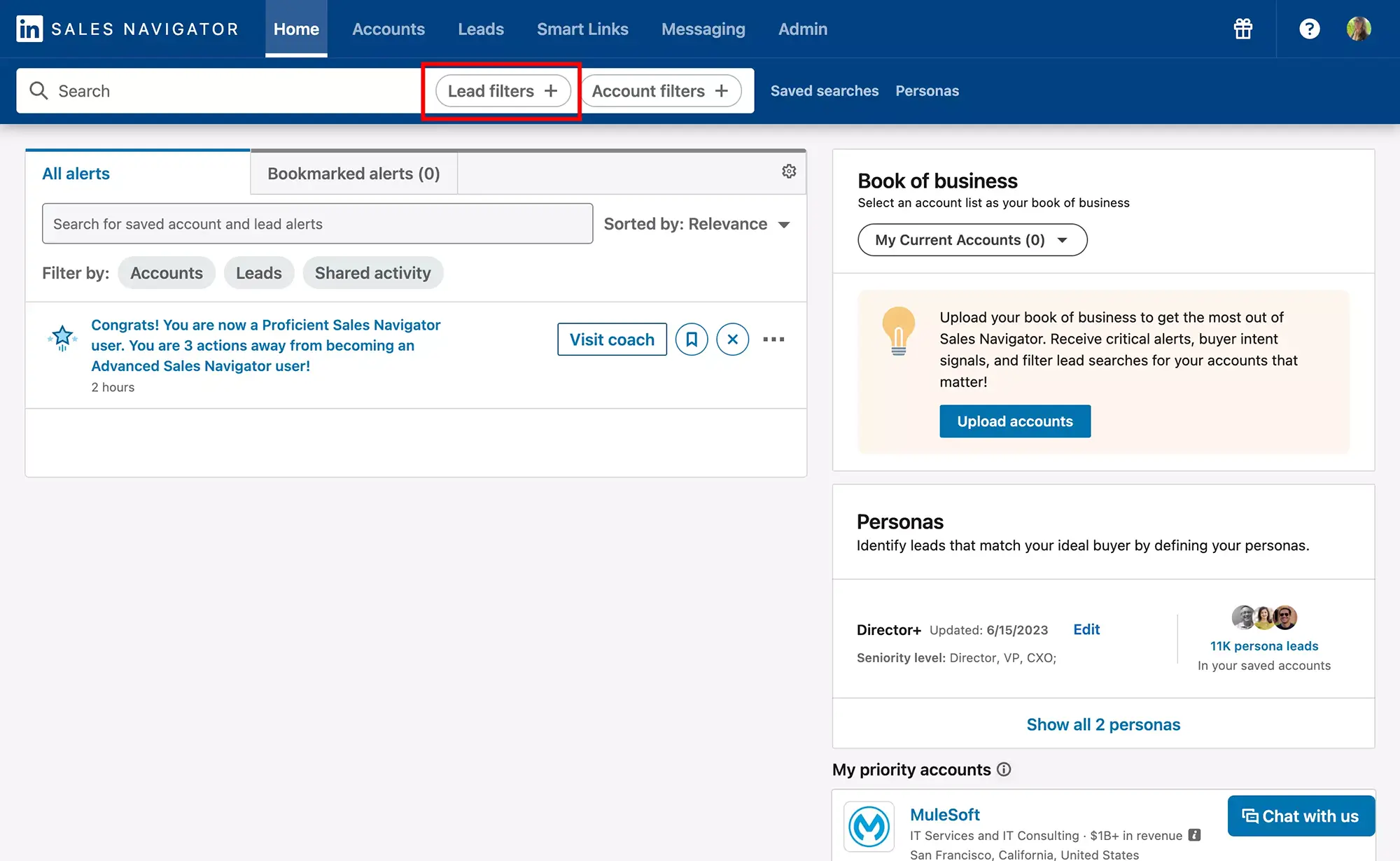
LinkedIn Sales Navigator is the most powerful prospecting tool on the market, with 50+ advanced filters, lead recommendations, and buyer intent signals. But manually searching, saving, messaging, and following up with hundreds of leads every week? That is a full-time job.
LinkedIn Sales Navigator automation changes everything. By automating repetitive tasks like lead scraping, connection requests, and follow-up sequences, you can 10x your outreach volume while keeping every interaction personalized and compliant with LinkedIn guidelines.
In this guide, you will learn exactly how to automate Sales Navigator in 2026: which tasks to automate, the best tools available, step-by-step workflows with Kanbox, and the best practices to stay safe while scaling your results.
What Is Sales Navigator Automation?
Sales Navigator automation refers to using third-party tools to automate repetitive prospecting tasks within LinkedIn Sales Navigator. Instead of manually performing each action, automation software handles the heavy lifting while you focus on closing deals.
Here is what Sales Navigator automation typically covers:
- Lead search and scraping: Automatically extracting lead data from Sales Navigator search results, saved searches, or lead lists
- Connection requests: Sending personalized invitations to targeted prospects at scale
- Follow-up sequences: Creating multi-step message campaigns that trigger based on prospect behavior (accepted, replied, no response)
- Profile visits: Strategically visiting prospect profiles to increase visibility before outreach
- Data export and enrichment: Exporting lead information to CSV or CRM, including finding email addresses for multichannel outreach
The key difference from basic LinkedIn automation is that Sales Navigator automation leverages the advanced targeting that only Sales Navigator provides. You are not just automating outreach to random profiles. You are automating outreach to highly qualified leads identified through boolean search operators, industry filters, company size, seniority level, and dozens of other criteria.
Think of it this way: Sales Navigator is your sniper scope. Automation is the trigger mechanism. Together, they let you hit your target with precision at scale.
Why Automate Sales Navigator? The ROI Case
If you are still doing everything manually in Sales Navigator, you are leaving significant results on the table. Here is why automation is no longer optional for serious B2B teams:
Time Savings
The average sales rep spends 5-6 hours per week on manual LinkedIn tasks: searching for leads, copying data, sending connection requests, writing follow-ups, and updating spreadsheets. With automation, that drops to under 1 hour per week of setup and monitoring.
| Task | Manual Time | With Automation |
|---|---|---|
| Lead search + scraping | 2-3 hours/week | 5 minutes |
| Connection requests (100/week) | 2 hours/week | 10 minutes setup |
| Follow-up messages | 1-2 hours/week | Automatic |
| Data export to CRM | 30-60 min/week | Automatic |
| Total | 6-8 hours/week | Under 1 hour/week |
Scale Without Hiring
A single SDR using Sales Navigator automation can generate the same pipeline as 3-4 SDRs working manually. For startups and small teams, this means scaling outreach without scaling headcount.
Consistency and Follow-Up
Research shows that 80% of deals require 5+ follow-ups, but most sales reps give up after 1-2 touches. Automation ensures every prospect receives the right number of touchpoints at the right intervals, without relying on human discipline.
Higher Response Rates
Automated sequences that include profile visits, engagement triggers, and personalized multi-step messages consistently outperform one-shot manual outreach. Teams using structured LinkedIn automation report 2-3x higher reply rates compared to manual messaging.
Better Data and Tracking
Every automated action is tracked: who accepted, who replied, who ignored, at what stage. This gives you a clear pipeline view and lets you optimize your messaging based on real conversion data rather than gut feeling.
What Can You Automate with Sales Navigator?
Not everything should be automated, but many repetitive tasks are perfect candidates. Here is a breakdown of what you can (and should) automate:
1. Lead Search and Scraping
Sales Navigator gives you access to powerful search filters that basic LinkedIn does not offer: company headcount, revenue, technologies used, job changes, posted content, and more.
With automation, you can:
- Scrape entire search results into structured lists (name, title, company, location, profile URL)
- Monitor saved searches and automatically add new matching leads to your pipeline
- Deduplicate leads across multiple searches to avoid contacting the same person twice
This is where a tool like Kanbox's LinkedIn scraper excels. It lets you extract leads directly from Sales Navigator search results, lead lists, or even LinkedIn event attendees with a single click.
2. Connection Request Campaigns
Instead of clicking "Connect" on each profile individually, you can:
- Upload a list of Sales Navigator leads
- Write a personalized connection note using dynamic variables (first name, company, job title, mutual connections)
- Set daily sending limits and time windows
- Let the tool send requests automatically while respecting LinkedIn quotas
3. Follow-Up Message Sequences
This is where the real ROI lives. Automated follow-up sequences let you:
- Design multi-step campaigns: e.g., Day 0: connection request, Day 2: welcome message, Day 5: value-add message, Day 10: soft CTA
- Set conditions: only send the next step if the prospect accepted but did not reply
- A/B test messages: compare different subject lines, CTAs, and message lengths
- Stop automatically: when a prospect replies, the sequence pauses so you can take over the conversation
4. Profile Visits and Engagement
Strategic profile visits serve as a "warm-up" before outreach. When you visit a prospect's profile, they receive a notification, which often leads them to visit yours. Automating this creates a subtle awareness signal before your connection request arrives.
5. Data Export and Email Enrichment
Sales Navigator does not allow native data export. Automation tools bridge this gap by:
- Exporting lead lists to CSV or directly to your CRM (HubSpot, Salesforce, Pipedrive)
- Enriching profiles with verified email addresses using the LinkedIn email finder
- Syncing data automatically so your CRM stays up to date
6. Lead List Management
Automate the organization of your leads into segments based on:
- Industry, company size, or geography
- Campaign stage (new lead, contacted, replied, meeting booked)
- Priority score based on engagement signals
Join them today and boost your LinkedIn prospecting.
How to Automate Sales Navigator with Kanbox: Step-by-Step
Kanbox is designed to work seamlessly with LinkedIn Sales Navigator. Here is how to set up your first automated campaign from start to finish:
Step 1: Connect Your LinkedIn Account
Sign up for Kanbox and connect your LinkedIn account. Kanbox operates as a cloud-based platform, meaning it runs in the background without requiring your browser to stay open or any Chrome extension to install.
Step 2: Build Your Lead List from Sales Navigator
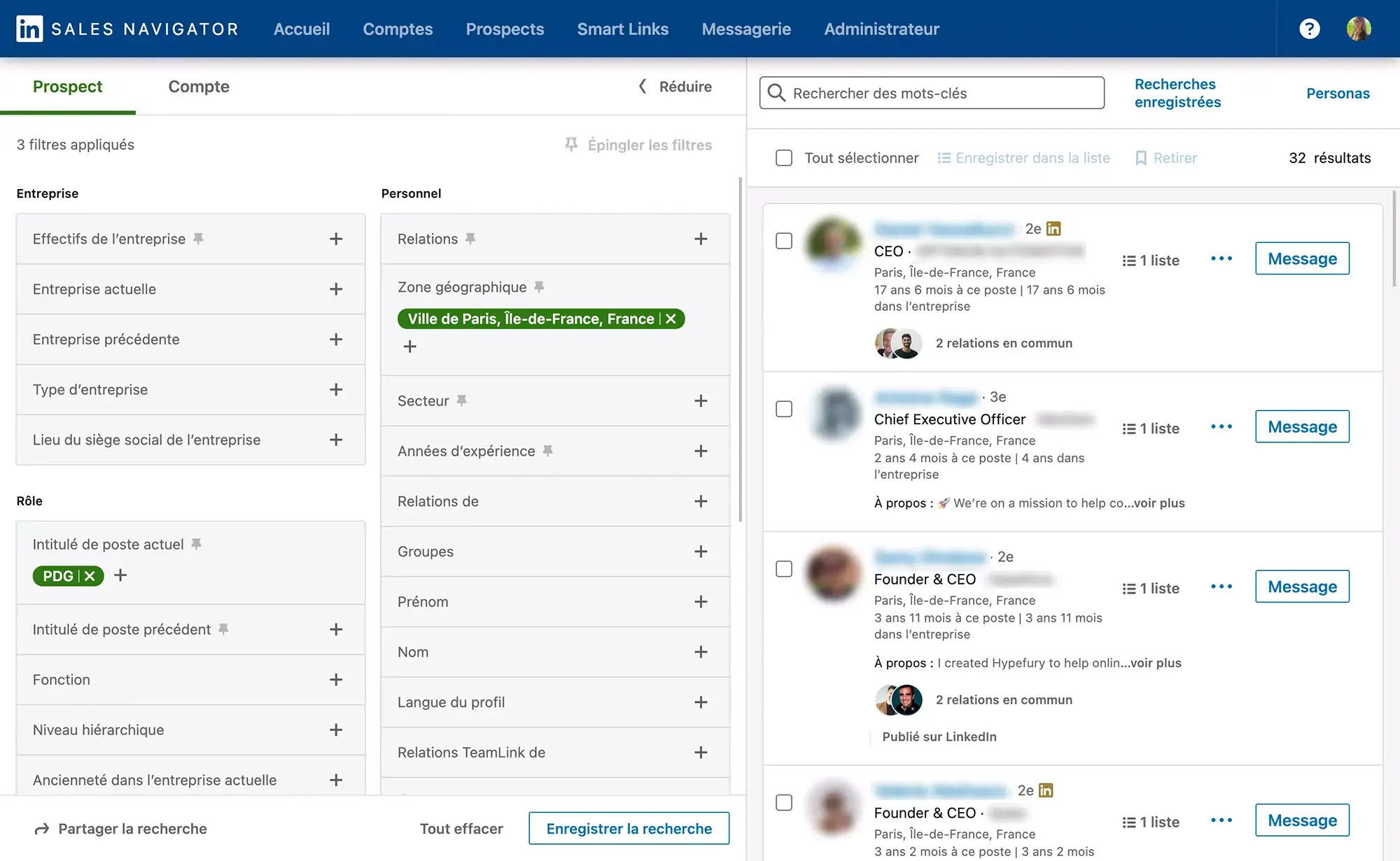
Open Sales Navigator and use the advanced filters to build your target audience. For example:
- Job title: VP Sales, Head of Growth, Sales Director
- Company headcount: 51-200 employees
- Industry: SaaS, Technology
- Geography: United States, United Kingdom
- Posted on LinkedIn: Last 30 days (signals active users)
Once you have your filtered search results, use Kanbox to scrape the entire list into your pipeline. Kanbox extracts all available data: name, title, company, location, profile URL, and more.
Step 3: Segment and Organize Your Leads
Inside Kanbox, your leads appear in a Kanban-style pipeline where you can drag and drop them across custom stages (New Lead, Contacted, Replied, Meeting Booked, Won, Lost).
You can also:
- Tag leads by campaign, source, or priority
- Filter by any data field
- Remove duplicates automatically
Step 4: Create Your Outreach Sequence
Navigate to Kanbox's automation builder and design your sequence:
Message 1 (Day 0) - Connection Request:
Hi
firstName, I came across your profile while researchingcompany. Your work in [specific area] caught my attention. Would be great to connect and exchange ideas. - [Your name]
Message 2 (Day 2 after acceptance) - Welcome Message:
Thanks for connecting,
firstName! I help companies likecompany[solve specific problem]. Curious: how are you currently handling [pain point]?
Message 3 (Day 5 if no reply) - Value Add:
Hi
firstName, quick thought: I recently put together [resource/case study] that helped a company similar tocompanyachieve [specific result]. Happy to share if useful.
Message 4 (Day 10 if no reply) - Soft CTA:
firstName, I know you are busy so I will keep this brief. Would a 15-minute call make sense to explore if we can helpcompanywith [outcome]? If not, no worries at all.
Step 5: Set Safety Limits and Launch
Before launching, configure your daily limits in Kanbox:
- Connection requests: 20-30 per day
- Messages: 50-80 per day
- Profile visits: 50-80 per day
- Active hours: Match your prospect's timezone (e.g., 8 AM - 6 PM EST)
- Randomized delays: Between 45 seconds and 3 minutes between actions
Hit launch, and Kanbox runs the campaign automatically. You will receive notifications when prospects reply, so you can jump into the smart inbox and continue the conversation personally.
Step 6: Monitor and Optimize
Track your campaign performance in Kanbox's dashboard:
- Connection acceptance rate (benchmark: 25-40%)
- Reply rate (benchmark: 15-25%)
- Meeting booking rate (benchmark: 3-8%)
Use these metrics to A/B test your messaging, adjust targeting, and refine your sequences over time.
Best Sales Navigator Automation Tools Compared
Not all automation tools are created equal. Here is how the leading Sales Navigator automation tools stack up in 2026:
Kanbox - Best All-in-One Platform
Price: From $10/month (yearly)
Kanbox combines LinkedIn automation with a built-in CRM, smart inbox, and pipeline management in a single platform. Unlike most tools that only handle outreach, Kanbox manages the entire lead lifecycle from first contact to closed deal.
Key strengths:
- Works natively with Sales Navigator search results and lead lists
- Cloud-based (no Chrome extension required for automation)
- Built-in LinkedIn scraper with email enrichment
- Kanban pipeline with custom stages
- Smart inbox that consolidates all LinkedIn conversations
- Team collaboration features for agencies and sales teams
- Safe daily limits with human-behavior simulation
Best for: Sales teams and agencies who want one platform for prospecting, automation, CRM, and inbox management.
Phantombuster - Best for Data Scraping
Price: From $69/month
Phantombuster is a versatile data extraction tool that offers "Phantoms" (pre-built automation scripts) for LinkedIn and Sales Navigator. It excels at scraping but requires more technical setup.
Key strengths:
- Powerful scraping capabilities across multiple platforms
- API access for custom integrations
- Good for data enrichment workflows
Limitations:
- No built-in CRM or inbox
- Steeper learning curve
- Requires separate tools for messaging automation
- Action-based pricing can get expensive at scale
Best for: Technical users who need advanced scraping and are comfortable building multi-tool workflows.
Evaboot - Best for Sales Navigator Export
Price: From $49/month
Evaboot specializes in cleaning and exporting Sales Navigator data. It automatically filters out false positives from Sales Navigator search results and exports clean lead lists.
Key strengths:
- Excellent data cleaning and deduplication
- One-click Sales Navigator export
- Email finding built in
Limitations:
- Export-only tool (no messaging or automation)
- No CRM or pipeline features
- Must be combined with other tools for outreach
Best for: Users who primarily need clean data export from Sales Navigator and handle outreach separately.
Expandi - Best for Multichannel Outreach
Price: From $99/month
Expandi is a cloud-based tool focused on safe LinkedIn outreach with multichannel capabilities (LinkedIn + email).
Key strengths:
- Smart sequences with conditional logic
- Multichannel campaigns (LinkedIn + email)
- Good safety features
Limitations:
- Higher price point
- No built-in CRM or pipeline view
- Limited scraping capabilities
- No smart inbox
Best for: Teams that need multichannel outreach combining LinkedIn and email in a single sequence.
Dripify - Best for Simple Drip Campaigns
Price: From $39/month
Dripify offers straightforward LinkedIn drip campaigns with a simple visual builder.
Key strengths:
- Easy-to-use campaign builder
- Affordable entry price
- Basic analytics dashboard
Limitations:
- Limited Sales Navigator integration
- No CRM or pipeline management
- Basic personalization options
- No inbox management
Best for: Solo users who want simple, set-and-forget LinkedIn drip campaigns.
Quick Comparison Table
| Feature | Kanbox | Phantombuster | Evaboot | Expandi | Dripify |
|---|---|---|---|---|---|
| Sales Navigator scraping | Yes | Yes | Yes | Limited | Limited |
| Automated sequences | Yes | No | No | Yes | Yes |
| Built-in CRM | Yes | No | No | No | No |
| Smart inbox | Yes | No | No | No | No |
| Email enrichment | Yes | Yes | Yes | Yes | No |
| Cloud-based | Yes | Yes | No | Yes | Yes |
| Team features | Yes | No | No | Yes | Yes |
| Starting price | $10/mo (yearly) | $69/mo | $49/mo | $99/mo | $39/mo |
Sales Navigator Automation Best Practices
Automation is powerful, but misuse can get your LinkedIn account restricted. Follow these best practices to stay safe and maximize results:
Respect LinkedIn Daily Limits
LinkedIn monitors account activity for unusual patterns. Stay within these safe thresholds:
- Connection requests: 20-30 per day (max 100 per week)
- Messages: 50-80 per day
- Profile views: 50-80 per day
- Total daily actions: Under 150 combined
- Weekly rest: Take 1 day off per week from automation
Personalize Every Touchpoint
Generic messages get ignored. Use dynamic variables to personalize at scale:
firstName- Prospect's first namecompany- Their current company{{title}}- Their job title{{mutualConnections}}- Shared connections (great trust signal){{recentPost}}- Reference their recent LinkedIn activity
The best-performing sequences include at least one manually customized element per prospect, such as referencing a specific post they wrote or a company milestone.
Warm Up New Accounts
If you just subscribed to Sales Navigator or started using automation, do not immediately send 30 connection requests per day. Ramp up gradually:
- Week 1: 5-10 connection requests/day
- Week 2: 10-15/day
- Week 3: 15-20/day
- Week 4+: 20-30/day
Use Business Hours
Schedule your automated actions during business hours in your prospect's timezone. A connection request sent at 3 AM looks suspicious and performs worse than one sent at 10 AM.
Maintain a Healthy Acceptance Rate
LinkedIn monitors your connection request acceptance rate. If it drops below 20%, your account may be flagged. To keep it high:
- Target only relevant prospects using Sales Navigator's advanced filters
- Always include a personalized connection note
- Avoid targeting prospects with no profile photo or minimal activity (low acceptance probability)
- Regularly clean your pending invitations (withdraw requests older than 3 weeks)
Comply with GDPR and Data Privacy
If you are targeting prospects in the EU, remember that GDPR applies to your outreach:
- Have a legitimate business interest for contacting prospects
- Do not store personal data longer than necessary
- Honor opt-out requests immediately
- Document your data processing activities
Sales Navigator Automation for Recruiting vs Sales
While the core automation principles are the same, recruiting and sales teams use Sales Navigator automation differently:
For Sales Teams
Primary goal: Generate meetings and pipeline
Typical workflow:
- Use Sales Navigator filters to identify decision-makers at target accounts (VP+, C-suite)
- Scrape and enrich lead data with email addresses
- Run automated connection + follow-up sequences highlighting relevant case studies or ROI metrics
- Move engaged prospects to a meeting-booking CTA
- Track the full pipeline in a CRM-style Kanban view
Key metrics: Connection acceptance rate, reply rate, meeting booking rate, pipeline generated
For Recruiting Teams
Primary goal: Source qualified candidates and fill roles faster
Typical workflow:
- Use Sales Navigator filters to find passive candidates (current title, years of experience, skills, location)
- Scrape candidate data into organized talent pools
- Run personalized outreach sequences focused on the opportunity and company culture
- Manage candidate conversations in a centralized inbox
- Track candidate status across recruitment pipeline stages
Key metrics: Response rate, interested candidate rate, time-to-fill, cost-per-hire
Key Differences in Approach
| Aspect | Sales Automation | Recruiting Automation |
|---|---|---|
| Message tone | Value proposition, ROI-focused | Opportunity-focused, career growth |
| Follow-up cadence | 4-5 messages over 2-3 weeks | 2-3 messages over 1-2 weeks |
| CTA | Book a meeting / demo | Schedule a call / learn more |
| Volume | Higher (hundreds per week) | More targeted (50-100 per week) |
| Personalization depth | Company-level research | Role-specific and skill-based |
Both use cases benefit enormously from LinkedIn Sales Navigator alternatives comparisons to pick the right tool stack.
Common Mistakes to Avoid
Even experienced users make these errors when automating Sales Navigator. Avoid them to protect your account and maximize results:
1. Sending Too Many Requests Too Fast
The most common mistake. Sending 50+ connection requests on day one is the fastest way to get your account restricted. Always ramp up gradually and stay within daily limits.
2. Using Generic, Copy-Paste Messages
"Hi, I would love to connect and explore synergies" has a near-zero response rate. Every message in your sequence should feel like it was written for that specific person. Use variables, reference their company or role, and provide genuine value.
3. Not Cleaning Your Sales Navigator Search Results
Sales Navigator search results often include false positives: people who changed roles, left companies, or do not match your criteria. Always review and clean your lead lists before launching automation. Tools like Kanbox help you filter and deduplicate automatically.
4. Ignoring Replies
This sounds obvious, but it happens more than you think. When a prospect replies to your automated sequence, the sequence should stop immediately, and you should respond personally within 24 hours. Sending an automated follow-up after someone already replied is a relationship killer.
5. Running Automation Without a CRM or Pipeline
Automating outreach without tracking where each lead stands is like pouring water into a leaky bucket. Use a tool that combines automation with pipeline management, so every lead is accounted for and no opportunity slips through the cracks.
6. Not Testing and Iterating
Your first sequence is rarely your best. A/B test different elements:
- Connection note length (short vs. detailed)
- Message timing (2 days vs. 5 days between steps)
- CTA type (ask a question vs. suggest a call)
- Value proposition angle (ROI-focused vs. pain-point-focused)
Track which variations perform best and continuously improve.
7. Automating Without Sales Navigator
While you can automate with a basic LinkedIn account, you are significantly limiting your targeting. Basic LinkedIn search returns fewer results with basic filters. Sales Navigator's 50+ filters, lead recommendations, and buyer intent data make your automation campaigns dramatically more effective. The investment in a Sales Navigator subscription pays for itself through higher-quality leads and better conversion rates.
8. Using Unsafe Tools
Chrome extensions that inject code into LinkedIn pages are the riskiest type of automation. LinkedIn can detect these modifications and restrict your account. Cloud-based tools that operate through their own infrastructure are significantly safer. Always choose a tool that simulates human behavior with randomized delays and action patterns.
Conclusion
LinkedIn Sales Navigator automation is no longer a competitive advantage. It is table stakes for any serious B2B sales or recruiting team in 2026. The question is not whether to automate, but how to do it right.
The winning formula is clear:
- Use Sales Navigator for precision targeting with advanced filters
- Choose the right automation tool (Kanbox offers the most complete stack at the best price)
- Personalize at scale with dynamic variables and thoughtful messaging
- Respect LinkedIn limits to keep your account safe
- Track everything in a pipeline so no lead falls through the cracks
For more strategies, read our guide on automating LinkedIn messages safely, or explore Evaboot alternatives if you need a better data export solution for Sales Navigator.
Ready to turn your Sales Navigator subscription into a lead generation machine?
 Try Kanbox for 15 days
No credit card required
Try Kanbox for 15 days
No credit card requiredKanbox automates your LinkedIn actions so you can focus on what really matters.
Frequently Asked Questions
Yes, when done correctly. Use a cloud-based automation tool like Kanbox that respects LinkedIn daily action limits (under 80 actions/day), adds randomized delays between actions, and simulates human behavior. Avoid Chrome extensions that inject code directly into LinkedIn, as these are more easily detected.
You can automate lead search and scraping, connection requests with personalized notes, follow-up message sequences, profile visits, data export (including emails), and lead list management. Tools like Kanbox handle the full workflow from lead discovery to conversion tracking.
The top tools include Kanbox (best all-in-one with CRM, inbox, and pipeline), Phantombuster (best for scraping), Evaboot (best for data export), Expandi (multichannel outreach), and Dripify (simple drip sequences). Kanbox stands out for combining automation with a built-in LinkedIn CRM and smart inbox.
LinkedIn allows approximately 80-100 connection requests per week across all account types. With Sales Navigator, the limit is the same. A safe daily pace is 20-30 connection requests per day with personalized notes. Automation tools like Kanbox enforce these limits automatically to protect your account.
No, most LinkedIn automation tools work with any LinkedIn account. However, Sales Navigator gives you access to 50+ advanced filters, lead recommendations, and larger search results, which makes your automation campaigns far more targeted and effective. The combination of Sales Navigator + automation is the most powerful setup for B2B prospecting.
Yes. Tools like Kanbox let you scrape and export Sales Navigator search results to CSV, including profile data, company info, and enriched email addresses. You can export entire lead lists or saved searches with one click, then push the data to your CRM.
LinkedIn Sales Navigator pricing in 2026: Core costs $119.99/month ($89.99/month with annual billing), Advanced costs $159.99/month ($149.99/month annual), and Advanced Plus has custom enterprise pricing. All plans include a 30-day trial for first-time users. See our complete Sales Navigator pricing breakdown for detailed feature comparisons across all tiers.
LinkedIn's Terms of Service do prohibit unauthorized automation. However, tools that respect daily action limits and use human-like behavior patterns are widely adopted by sales teams. The Kanbox Chrome extension approach is considered safer than cloud-based alternatives because it operates within your browser session, mimicking natural user interactions rather than accessing LinkedIn through external servers.